Link to Windows
Screenshots
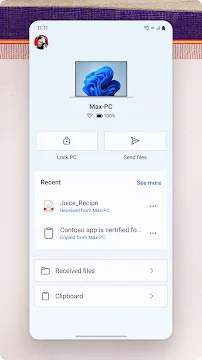
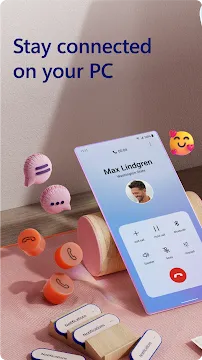
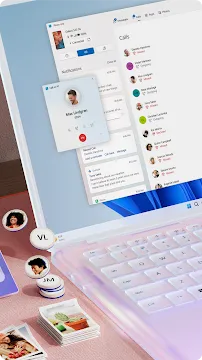
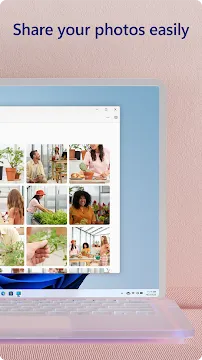
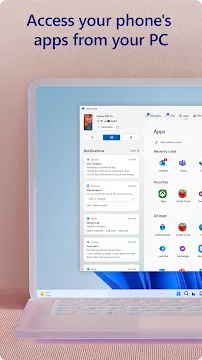
Link to Windows is a synchronization tool for mobile users. It syncs your photos, text messages, and mobile calls. The software transmits data securely between your mobile phone and your personal computer.
You can view your phone screen directly on your computer monitor. Consequently, you can control mobile apps with your mouse and keyboard. This capability makes typing long text messages much faster.
The software requires a free Microsoft account to function properly. Therefore, you must log into both devices with the same profile. Then, the wireless connection establishes itself automatically.
This tool functions quietly in the background of your phone. Thus, it does not interrupt your regular daily smartphone tasks. It offers a practical way to merge your mobile and desktop spaces.
How to Set Up Link to Windows
First, open the settings panel on your personal computer. Look for the mobile devices section in the main system menu. Then, choose the option to add a new phone.
Second, download Link to Windows on your mobile smartphone. Open the tool and select the QR code pairing option. After that, point your phone camera at your computer screen.
- Turn on Bluetooth on both devices.
- Connect both devices to the same home network.
- Allow the required permissions on your smartphone.
- Log into your personal Microsoft account profile.
Finally, confirm the pairing code displayed on both screens. Now, your devices are linked and ready for data transfer. You can customize which notifications you want to receive on your PC.
Major Features of Link to Windows
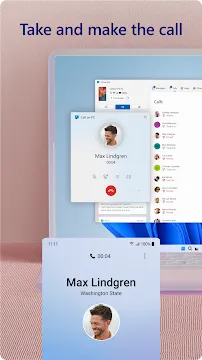
The tool allows you to make phone calls from your computer. It uses your PC speakers and microphone for the conversation. Consequently, you can leave your smartphone inside your pocket.
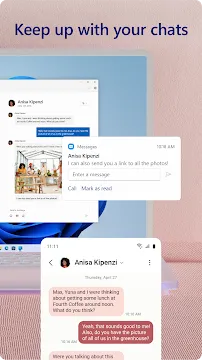
You can also send text messages through your computer keyboard. The conversation history syncs instantly across both screens. Therefore, you never miss an important chat with your friends.
- Instant access to recent mobile photos.
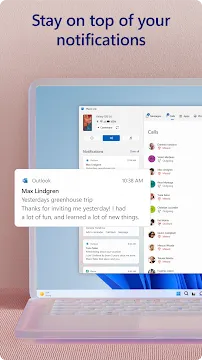
- Real-time smartphone notification mirroring on PC.
- Direct mobile application streaming on desktop windows.
- Cross-device copy and paste text functionality.
Furthermore, you can drag and drop files between devices smoothly. This feature works beautifully for transferring images or document files. It eliminates the need for annoying email attachments.
Productivity Benefits of Link to Windows
This tool minimizes distractions during your busy workday. You do not check your smartphone screen every five minutes. Instead, you see urgent alerts right on your computer desktop.
You can dismiss useless notifications with a simple mouse click. This setup keeps your focus entirely on your primary work tasks. Thus, your overall daily work output increases significantly.
Typing on a full keyboard is easier than a touchscreen. You can reply to mobile messages with great speed and accuracy. This benefit is especially useful for managing customer service chats.
Additionally, sharing screenshots becomes an effortless task. You take a photo on your phone and use it on PC. The image appears instantly in your computer photo gallery panel.
System Requirements for the Software
Your personal computer must run a modern version of Windows. Specifically, Windows 10 or Windows 11 are compatible systems. Older operating systems do not support this advanced wireless linkage.
Your smartphone needs a relatively modern operating system as well. Most devices from recent years meet these technical specifications. Some advanced features require specific smartphone brands.
- Windows 10 with the May 2019 update or later.
- An active internet connection via Wi-Fi or mobile data.
- Bluetooth support on your desktop computer or laptop.
- A valid and active personal Microsoft account login.
Make sure to update your software regularly for best results. New updates fix bugs and improve the overall connection speed. They also introduce fresh features for supported phone models.
Troubleshooting Common Connection Issues
Sometimes the connection between your devices might fail completely. When this happens, check your internet network connection status first. Both devices must have access to a stable internet feed.
Next, verify that Bluetooth is active on your laptop. Link to Windows relies on Bluetooth for voice calling features. Turning Bluetooth off and on often fixes temporary pairing errors.
If the problem continues, restart your smartphone and your PC. Simple reboots clear out system memory conflicts quite effectively. Then, open the tool again to see if it connects.
Finally, check your battery saver settings on your mobile device. Strict battery saving modes often close background wireless tools. Disable battery optimization for this specific software to ensure smooth operation.
Conclusion
Link to Windows provides an excellent solution for device integration. It brings your mobile phone features directly onto your desktop workspace. Because of this, you can work without constantly switching screens.
The tool handles text messages, phone calls, and photo sharing easily. It operates safely and protects your personal data during transfers. Therefore, it fits perfectly into any professional office environment.
Setting up the connection requires very little technical knowledge or effort. The wireless system runs smoothly once you finish the initial pairing. It completely changes how you interact with your phone.
If you want to improve your workflow, try this software today. It eliminates unnecessary steps and saves your valuable time daily. Download the tool to experience a truly connected workspace.